Guide 3 min read
Keeping a character consistent across images and videos
Three ways to keep the same face in every picture: a character sheet, reference images with edit models, and training your own style. Plus how to carry it into video.
On this page
Every new generation starts from noise, so the same prompt gives a slightly different person each time. For a comic, a brand mascot or a virtual influencer that is a problem. These are the three methods that work, from quickest to most reliable.
Step 1: write a character description
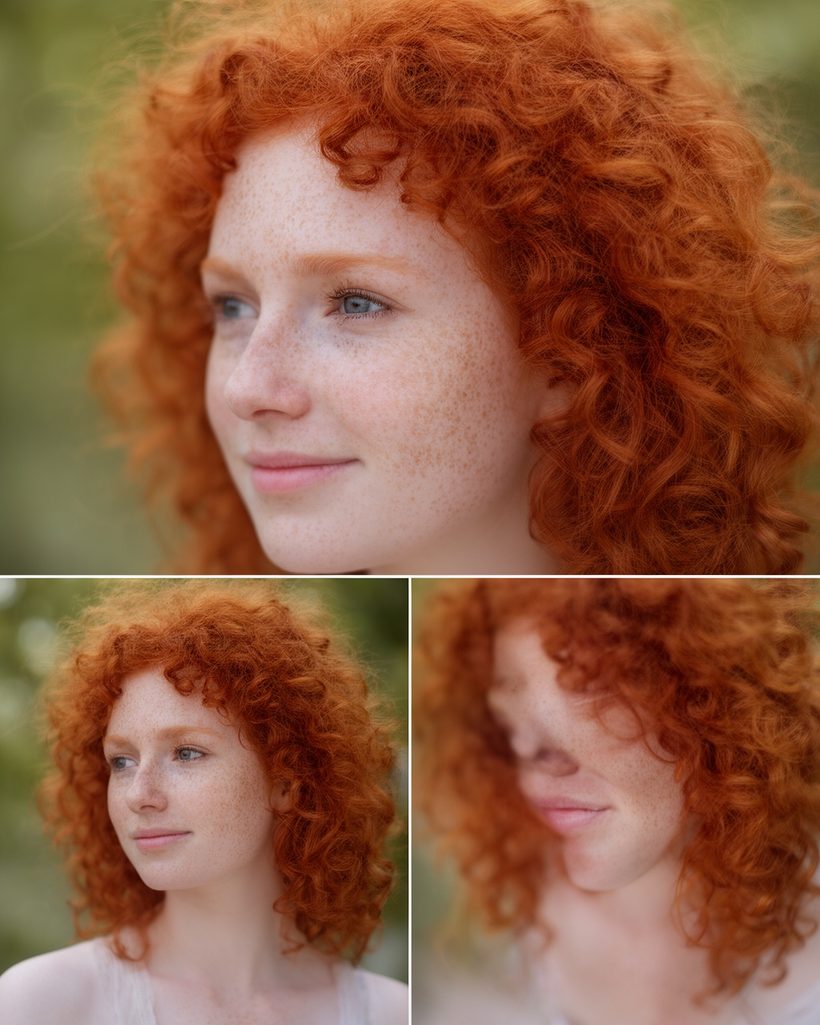
Write one fixed paragraph that describes the character, and paste it unchanged into every prompt. Be specific about what makes them recognisable: age, face shape, eye colour, hair colour and style, freckles or scars, a signature item of clothing.
Character sheet of the same young woman, early twenties, pale skin with freckles, green eyes, shoulder-length copper-red wavy hair, small silver hoop earrings: front view, three-quarter view and profile, neutral grey background, soft even studio light, photo
Generate until one face feels right, then keep that picture: it becomes your reference.
Method 1: reference images with an edit model
Edit models can take your character's picture and put the same person in a new scene. Upload one or more clear reference pictures and describe the new situation. Start the prompt with "Same woman, same face and hair" so the model knows what to keep.
- Nano Banana Pro Edit Multi accepts up to 14 input pictures, so you can give a front view, a profile and an outfit at once.
- Ideogram Character is built for putting one character into new images.
- Qwen Image Edit 2509 Multiple Angles helps you make extra angles of the same face for your reference set.
Same woman, same face, freckles and copper-red hair. She is now reading a book on a sunny balcony in Lisbon, wearing a white linen shirt, candid lifestyle photo, 35mm
Method 2: train your own style
For many pictures of the same character, train a small add-on model called a LoRA. You upload a zip of pictures, choose a trigger word (a made-up word such as mirakat), and the trainer learns the face. Later, any prompt with that trigger word brings the character back.
- Use at least 10 to 20 clear pictures of the same character: different angles, expressions, outfits and light. Variety teaches the face, not the background.
- Crop so the face is large enough; avoid sunglasses, heavy filters and other people in frame.
- Pick a trigger word that is not a real word, so it doesn't clash with anything the model already knows.
- Trainers in the Train a style section include FLUX Dev LoRA Trainer, Z Image LoRA Trainer and Qwen Image 2512 LoRA Trainer.
- Use the result with a model that accepts LoRAs, such as FLUX 2 Dev Text to Image LoRA or Z Image Turbo LoRA. Use the matching model family for the trainer you picked.
Carrying the character into video
The simplest way: make a consistent still first, then use it as the first frame of an image-to-video model. Some video models also take reference pictures directly, such as Seedance 2.5 Text to Video, which accepts reference images for characters and style, and Veo 3.1 Reference to Video. For talking clips, animate the same portrait with Seedance 2.5 Talking Avatar.
Consistency checklist
- One fixed character description, pasted unchanged into every prompt.
- A folder of approved reference pictures: front, three-quarter, profile, full body.
- The same model for a whole series. Switching models changes the look.
- Similar light and lens in every scene, unless the change is intended.
- For long series: a trained style with a unique trigger word.
Written by the Yumeforge team. Model options change over time; each model page shows the current ones.