Tutorial 3 min read
Photo to video: getting natural motion
How to turn a still photo into a video that moves naturally: choosing the picture, describing motion and camera, clip length, start and end frames, and fixing warping.
On this page
Image-to-video models take your picture as the first frame and invent what happens next. The picture already shows the scene, so your prompt has one job: describe the motion. Most of the craft is in keeping that motion believable.
Start with the right picture
- Sharp and well lit. Blur and noise turn into flicker once things move.
- Room to move. A subject cropped at the frame edge has nowhere to go. Leave some space around it.
- Matching format. Use a vertical picture for a vertical video. Cropping afterwards throws away resolution.
- Clear subject. One person or object in focus animates better than a busy crowd.
Describe motion, not the picture
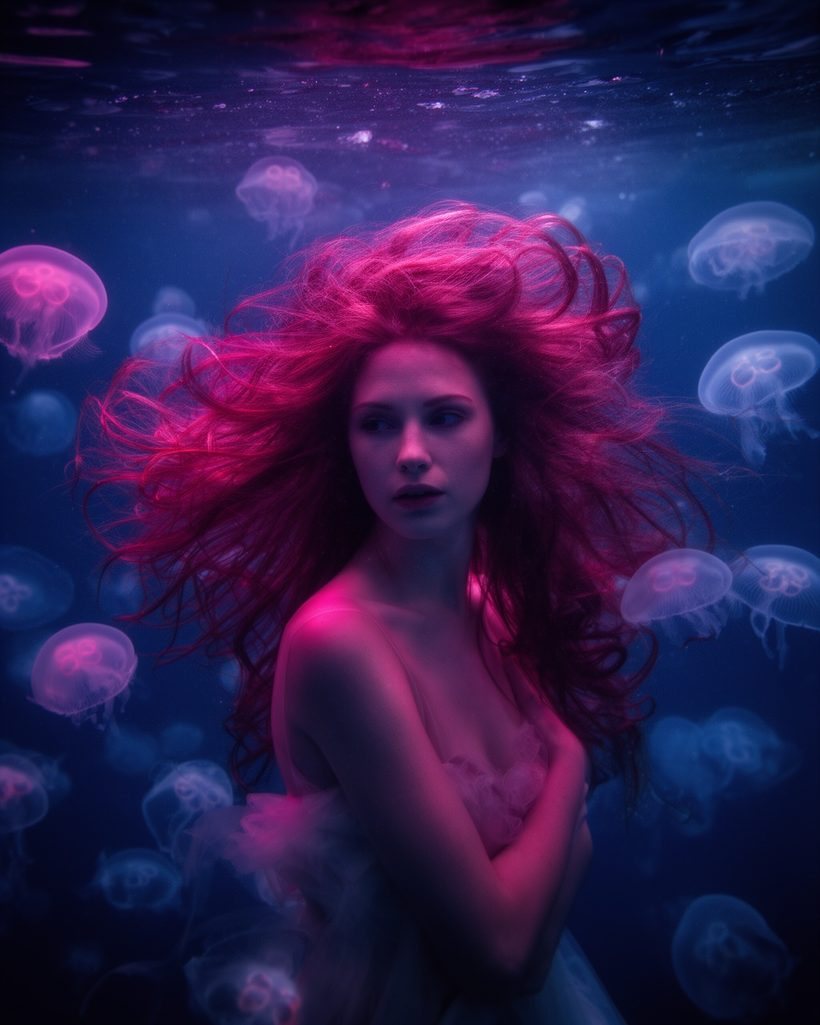
Don't repeat what is visible ("a woman underwater with jellyfish"). Say what moves and how: "her hair drifts slowly, the jellyfish pulse and rise, light ripples across her face". Pick one main action plus small secondary motion. Several big actions in five seconds is where faces and hands start to warp.
Weak prompt
woman underwater, jellyfish, beautiful, cinematic, 4k
Better prompt
Her hair drifts slowly in the current, the jellyfish pulse gently and rise, soft light ripples over her face. The camera slowly pushes in.
The strong prompt only describes movement: what moves, how fast, and what the camera does.
Add one camera move
A small camera move makes even a still scene feel like film. Use one of these words and keep it slow:
- Push in / dolly in: the camera moves closer. Great for portraits and products.
- Pull back: reveals the surroundings.
- Pan left or right: the camera turns on the spot, good for landscapes.
- Orbit: the camera circles the subject, good for products and statues.
- Static camera: nothing moves but the subject. Use it when the motion itself is the point.
- Handheld: slight natural shake, for a documentary feel.
Gentle natural motion: hair and fabric move softly in a light breeze, light shimmers, the subject blinks and breathes. The camera slowly pushes in. Calm, cinematic.
Upload your photo in the studio, then paste this.
Keep clips short
The longer a clip, the more the model has to invent, and the more it drifts from your photo. Five seconds is plenty for most social posts. Need more? Make several short clips and cut them together, or use a model with a video extend option, such as Veo 3.1 Video Extend or Wan 2.7 Video Extend.
Control the ending with a last frame
Several models accept a second picture as the last frame. The model then creates the motion between your two pictures, which gives you much more control. In the studio this option exists on, among others, Veo 3.1 Image to Video, Seedance 2.5 Image to Video, Wan 2.7 Image to Video, Kling v3.0 Pro Image to Video and FLUX 3 Start End to Video.
Sound
Some models can generate sound with the video, such as Veo 3.1 and Seedance 2.5, which have audio turned on by default, and Kling v3.0 Pro, which has a sound option. Describe the sound in the prompt ("soft rain, distant thunder") to steer it, or turn it off when you add music later.
Fixing common problems
- Faces or hands warp: ask for less motion, shorten the clip, or use a sharper, larger source photo.
- Nothing moves: use explicit verbs ("turns her head to the left", "waves crash") and name a camera move.
- The scene morphs into something else: your prompt probably describes a different scene. Describe only motion.
- Motion is too fast: add "slow", "gentle" or "subtle", and say "calm" or "cinematic".
Want the result without writing anything? The Bring it to life and Cinematic push-in effects use a tuned motion prompt. Just add your photo.
Written by the Yumeforge team. Model options change over time; each model page shows the current ones.