Tutorial 2 min read
Using effects: pro results in one click
What effects are, how to use them, which photo works best for each one, and how to tweak the prompt behind an effect when you want more control.
On this page
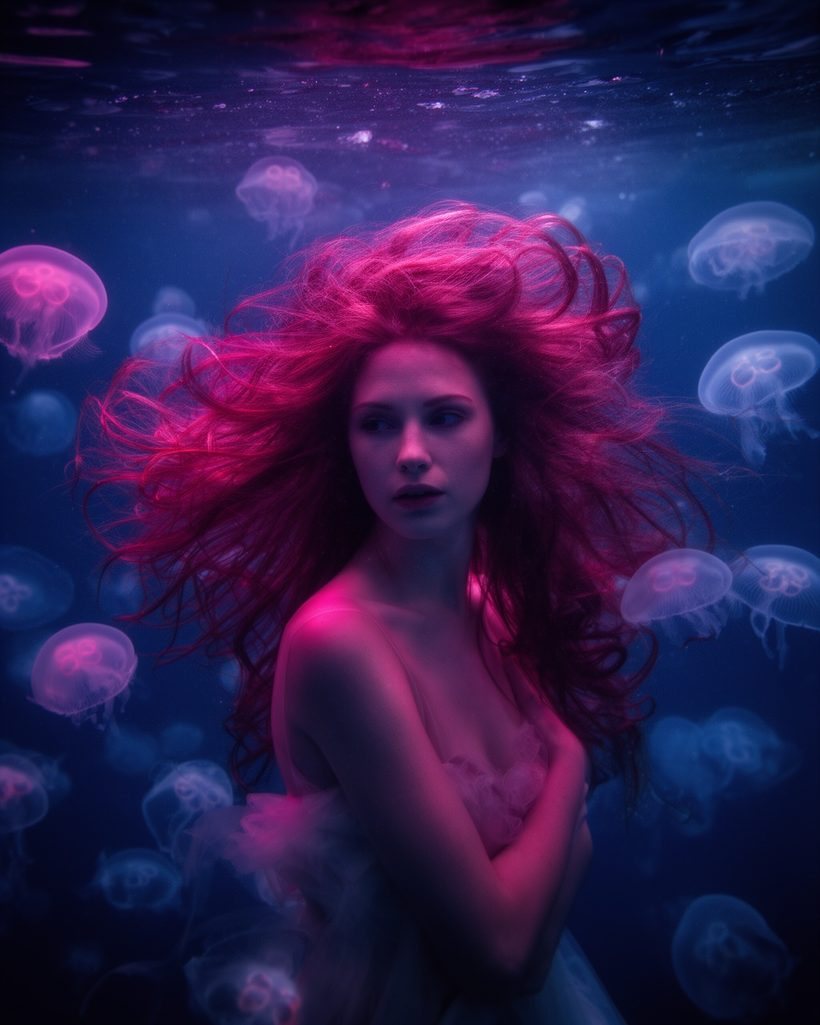
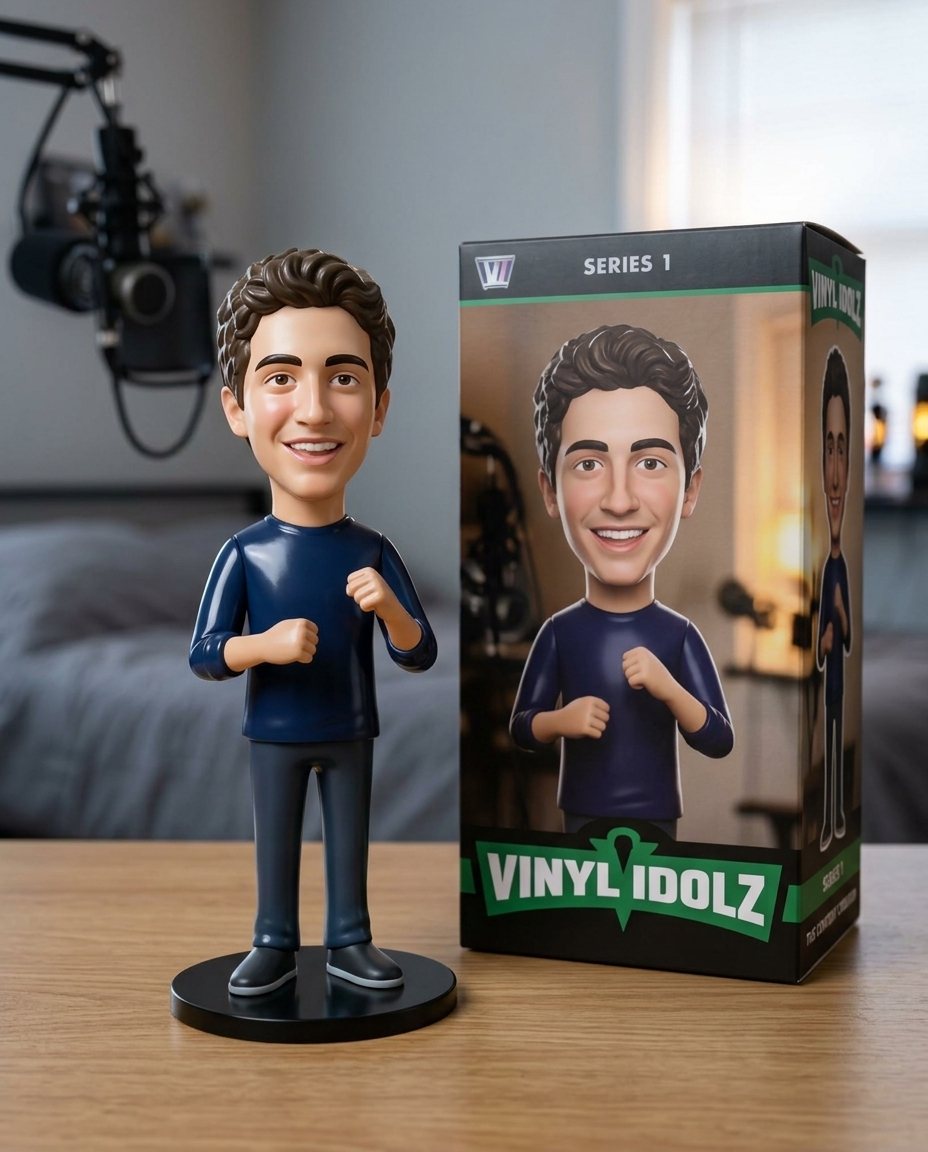
An effect is a ready-made recipe: a well-tested prompt, the model that does it best, and the right settings. You add a photo (or one line of text) and get the result. No prompt writing, no model choice.
How to use an effect
- Open Effects and pick a look. Each card shows a real before and after made with that effect.
- Press Use this effect. The studio opens with the effect ready.
- Add your photo. The price in credits shows before you start.
- Press Generate. Your result appears in your library, and failed generations are refunded automatically.
Which photo works best
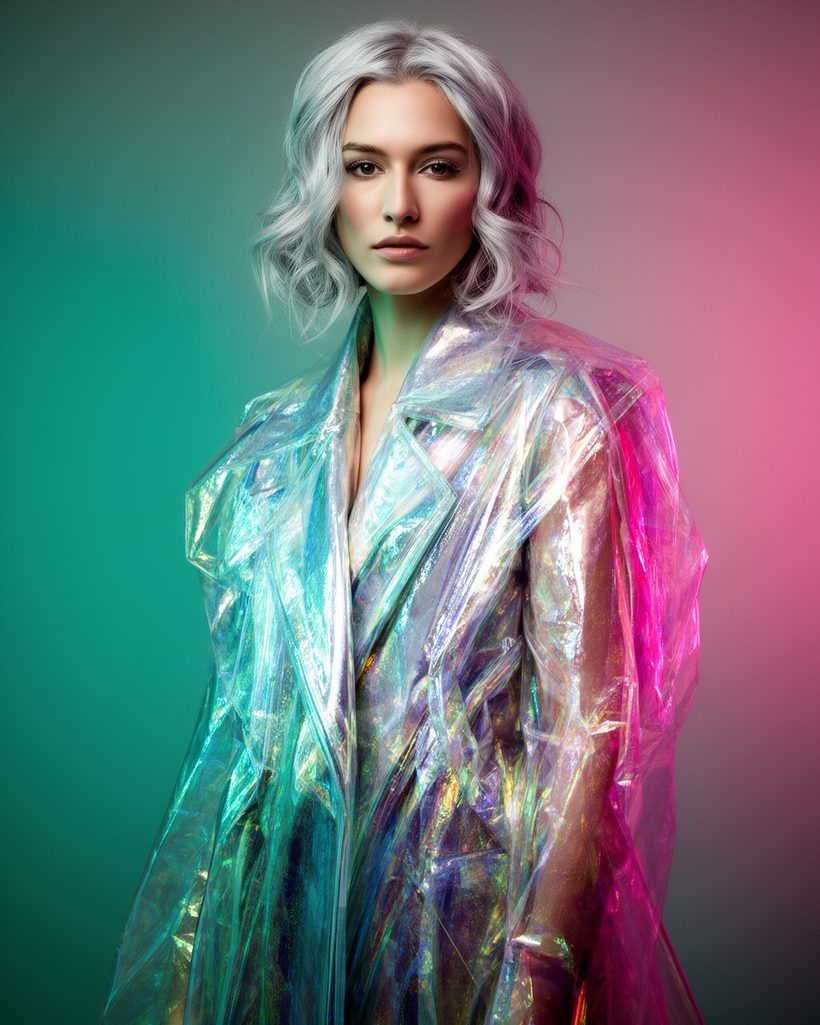
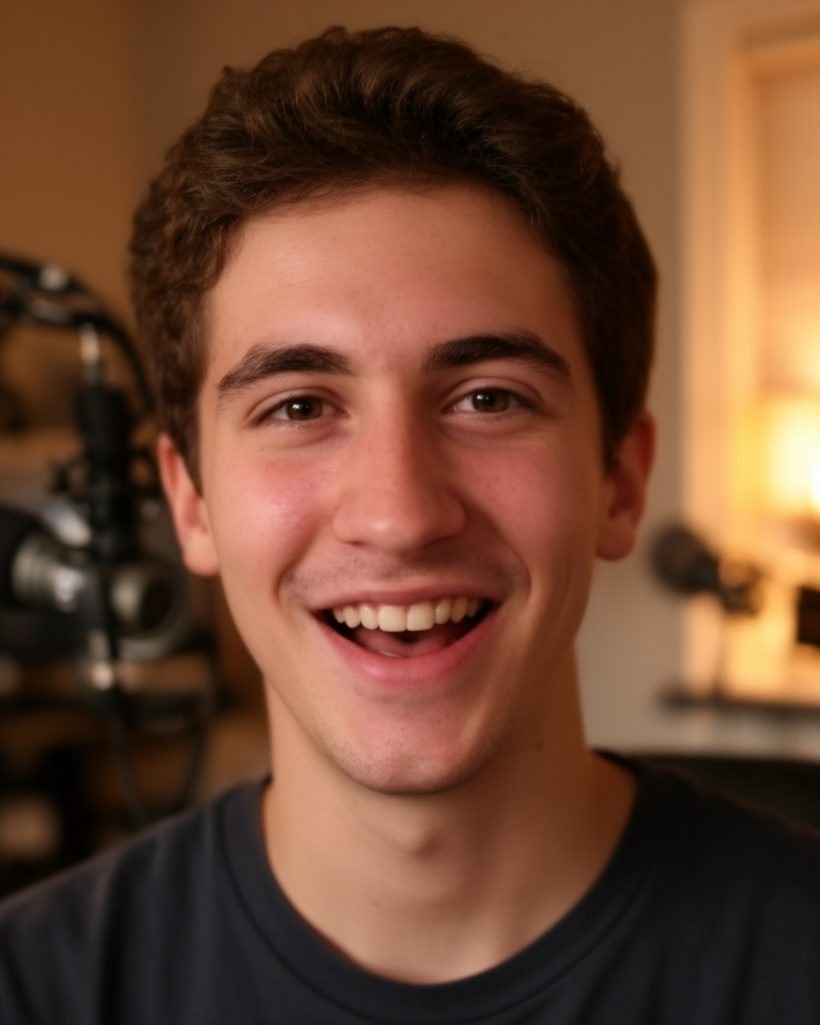
- Portrait effects like Studio headshot: one person, face clearly visible, looking roughly at the camera, no sunglasses.
- Style effects like Hand-painted anime, Pencil sketch and Clay world: any photo with a clear subject and a simple composition.
- Scene effects like Golden hour and Neon night: photos with some depth, such as a street, a room or a landscape.
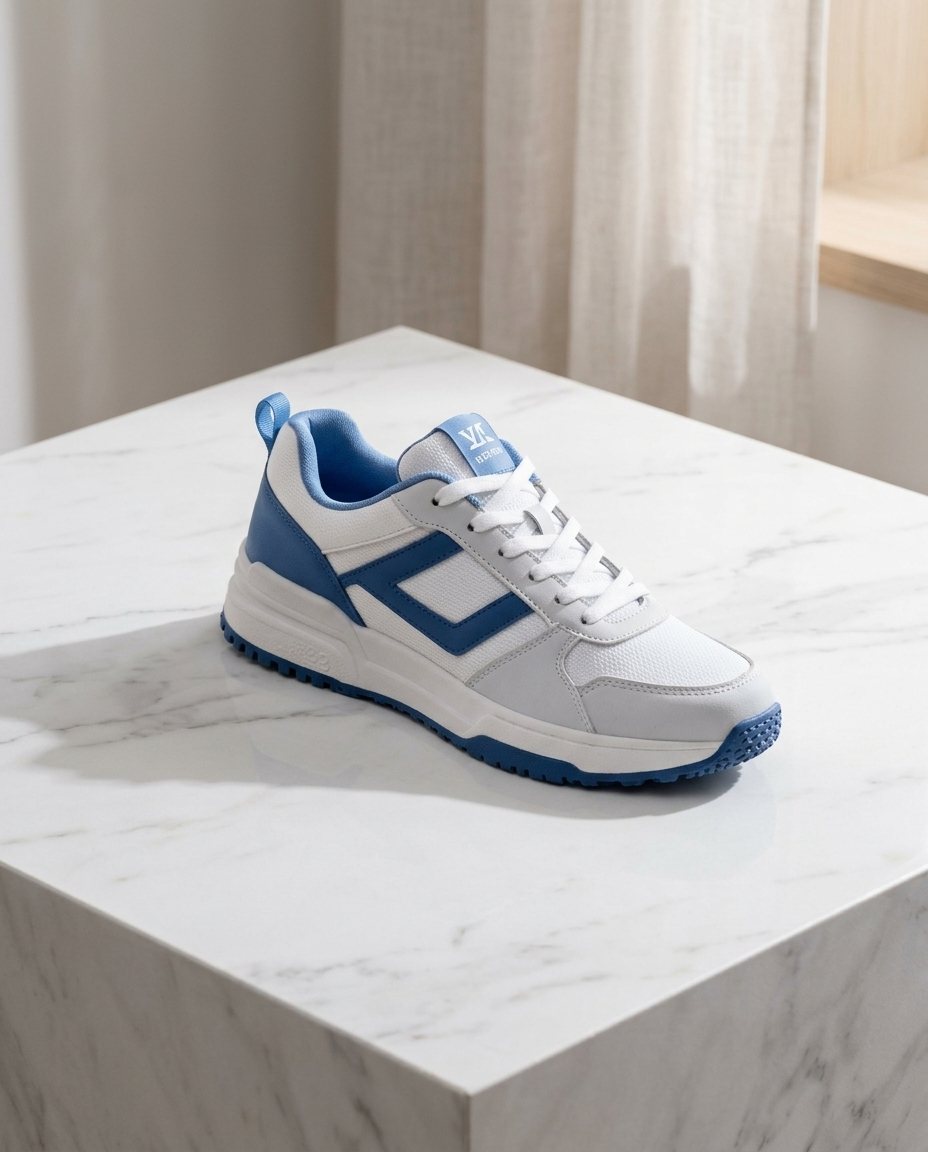
- Product effects like Product on marble: the product alone, sharp, on a plain background.
- Video effects like Bring it to life: a sharp photo with room around the subject, so it has space to move.
- Upscaling with Sharpen to 4K: any picture you want bigger and crisper.
Text effects
Some effects start from a description instead of a photo. Movie poster has a prompt with a part in [brackets]: replace only that part with your own story and keep the rest.
Tweaking an effect
Every effect page shows the prompt it sends to the model. Once the studio is open you can change it: add "keep the background", change "marble" to "slate", or ask for a different time of day. Small changes keep the quality of the recipe while making it yours.
When to go beyond effects
Effects cover the most-asked looks. When you want something specific, open a studio section and write your own prompt; the prompt library and How to write prompts for AI images will get you started.
Written by the Yumeforge team. Model options change over time; each model page shows the current ones.